Start with a good photo.
Pick a sharp photo with even lighting and one clearly visible person. Your image sets the composition, clothing and atmosphere. For video, use at least 300 pixels on each side and avoid extreme panoramic crops.
AI PHOTO TO VIDEO
That look. That little smile. Turn a still photo into a short video with a movement that feels like you.
THE NEXT SCENE IS YOURS
PHOTO → VIDEO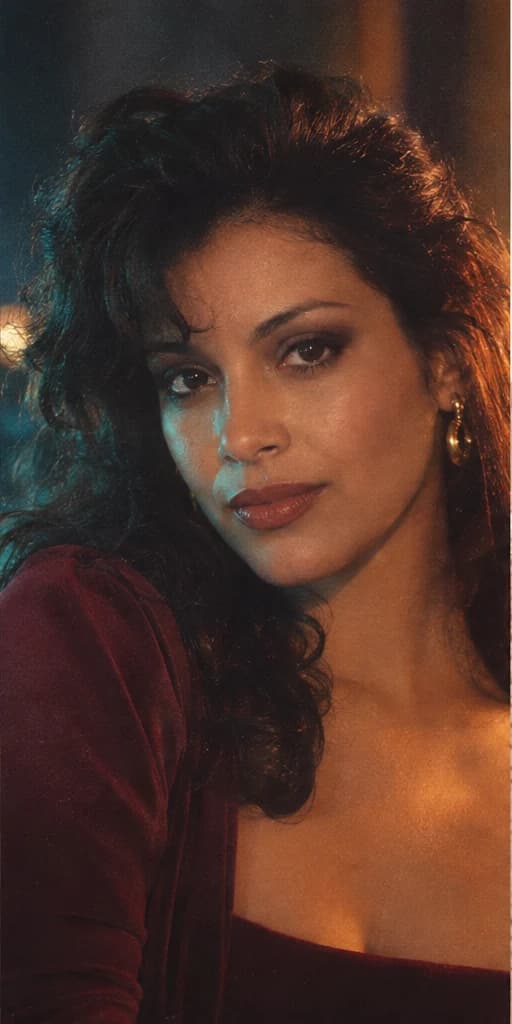 MOVEMENT ILLUSTRATION
Fictional AI portrait with a simple camera-motion illustration. This is not a video generated by this tool. Your finished result appears here.
FROM STILL TO SOMETHING MORE
Pick a sharp photo with even lighting and one clearly visible person. Your image sets the composition, clothing and atmosphere. For video, use at least 300 pixels on each side and avoid extreme panoramic crops.
A gentle push-in, a quiet smile or a soft breeze keeps attention on your face. For a dance or gesture, Copy a Motion takes your own reference clip. Each option shows its credit cost before you generate.
Play the whole clip. Check facial details and movement against your original. Download the silent MP4, then add music or captions in your preferred editor. Label shared results as AI-generated.
A FRAME WORTH KEEPING
Photo-to-video animation starts with the scene already in your image. It works best when your request builds on that scene. A close-up portrait suits a blink or gentle smile; a photo that shows the body gives a movement reference more room to work.
Strong filters, motion blur and hidden hands can carry through into the video. Choose a different source when you want a substantially different setting. If you want an 80s look first, create a retro portrait, review it and use its Animate this photo action.
These are creative interpretations, not a reconstruction of what someone actually did. Review your result and respect the permissions of everyone pictured.
Choose a movement, upload a clear JPG, PNG or WebP, and review the displayed credit cost. After you generate, the model animates your image into a short silent MP4. You can play the video, compare it with the original photo and download it. This creates motion within a photo; it does not create a slideshow.
Cinematic Portrait, Photo Comes Alive and Golden Breeze each use 60 credits for one five-second video. Copy a Motion uses 90 credits for a clip following your 3–5 second reference. These prices cover video generation only. Creating a new retro portrait first uses separate image credits. Downloading and replaying your result use no additional credits.
The presets ask for consistent facial identity, age and skin tone, with restrained movement. AI can still alter facial details, hands or clothing. A clear face, simple background and a small movement are useful starting points. Review the complete clip before saving. Large head turns, hidden faces and crowded photos are more difficult.
Yes. Open a completed portrait and choose Animate this photo. Its private result becomes the starting frame in the video studio. The portrait must still be within its 24-hour access window. You can also upload a portrait you previously downloaded.
Upload a photo of one person and your own 3–5 second H.264 MP4 showing a dance or gesture. The reference clip must be under 3 MB; the combined files must be under 4 MB. Match the body framing in both files, keep the head and body visible, and avoid obstructions. The video follows that movement; its original sound is not included.
Yes. Once the request is saved, processing continues in the provider queue. Sign back into the same account and open Your recent videos. Check video status reconnects to the existing request without submitting another generation. The studio does not display a made-up completion percentage or guaranteed waiting time.
A confirmed generation failure restores the reserved credits with their original expiry. If a connection is interrupted and the outcome is uncertain, the reservation remains until the request is resolved. Check the existing request before trying anything else. A completed video uses credits even if you choose not to keep it.
EditingApp does not publish your files to a gallery. Your account has access for 24 hours from submission. Private download links are short-lived and can be refreshed in the studio. You can delete completed files yourself. Automatic deletion uses scheduled cleanup, with additional cleanup when you revisit expired requests. Provider retention is described in the privacy notice.